How to connect your Quest 3 to a PC wirelessly (Air Link and Steam Link)
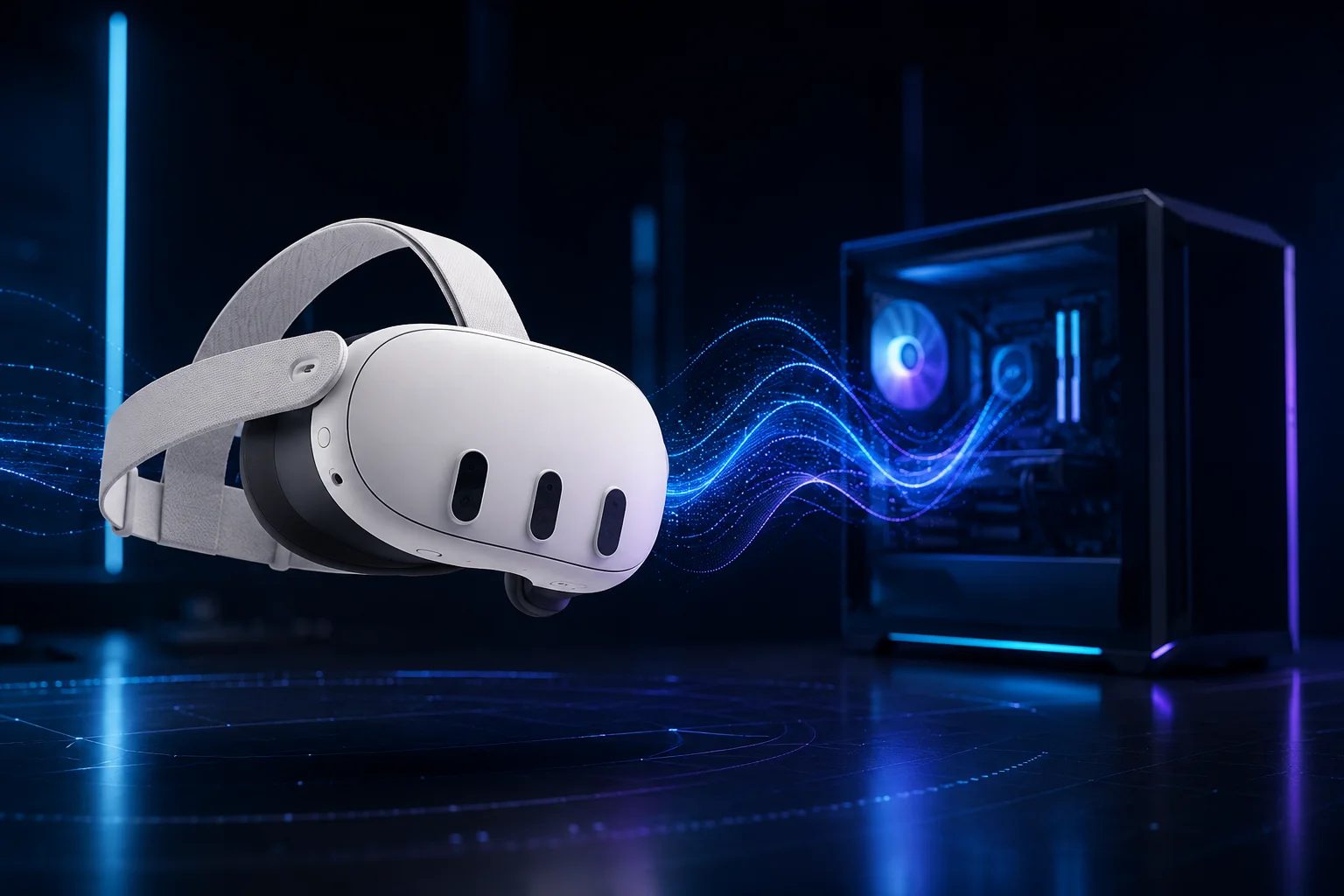
Playing PCVR without a cable is the dream: full room-scale freedom with your PC doing the heavy lifting. The catch is that wireless VR lives or dies on your home network, not on the app you pick. There are two free ways to do it — Air Link, which is Meta's, and Steam Link, which is Valve's — plus a paid option, Virtual Desktop, if you want the best quality money can buy. Prefer to just plug in? Our wired guide covers that, and it's the more reliable route.
Before you touch any app, sort out the network, because this is where almost every "Air Link doesn't work" story actually begins. One thing to get straight first: this is all about your local network — the link between your router, PC, and headset — not your internet connection. Wireless VR streams the image from your PC to the headset, so your ISP plan and download speed have nothing to do with it; a slow internet connection on a strong local network is perfectly fine. Connect your PC to the router with an Ethernet cable — not its own Wi-Fi. Put the Quest 3 on a 5 GHz or 6 GHz band (Wi-Fi 6 or 6E is ideal), keep the router in or near the room you play in, and if you can, give the headset its own dedicated band so it doesn't quietly drop to slow 2.4 GHz. During a session, keep phones, TVs, and smart-home gadgets off that band; congestion is what turns a crisp image into a stuttering, blurry one. Get this right and both apps below will feel great. Skip it, and no setting will save you.
Air Link is Meta's wireless mode, built into the Meta Horizon Link PC app (the one formerly called Quest Link). Turn Air Link on in the PC app, then in the headset open Quick Settings, go to Link, toggle Use Air Link, pick your PC, and confirm the matching pairing code. Inside the Air Link panel you can set the bitrate — on a Wi-Fi 6 network a fixed value around 200 Mbps looks great — and the Quest 3's newer AV1 codec squeezes more quality out of the same bandwidth. One current snag worth knowing: since an early-2026 update, adding non-Meta games (your Steam titles) to the Air Link library can throw an error. The easy fix is to play Steam games through Steam Link instead.
Steam Link is Valve's free app, and if your library lives on Steam, it's the path of least friction. Install Steam and SteamVR on your PC, grab the free Steam Link app from the Quest store, make sure both are on the same network, then launch it and pair with Steam on your PC. It drops you straight into SteamVR — no Meta middleman, and no Developer Mode required, despite what some guides claim. For most people whose games are on Steam, this is the smoother of the two free routes.
So which one? Both are free, so the honest answer is: try each on your network and keep whichever feels better. As a rule of thumb, Steam Link is best if your games are on Steam and you want to sidestep Meta's flakier moments; Air Link is best if you mostly buy from the Meta store and want its boundary and tracking features baked in. There's also a latency-versus-image trade-off worth knowing: for fast or competitive games, many users find Steam Link gives the lowest latency — it responds quickest, even if the picture isn't the prettiest. If neither free option satisfies you and you'll spend around $20, Virtual Desktop tends to give the cleanest wireless image of all three, and its AV1 mode is hard to beat for relaxed games where visuals matter most.
When something goes wrong — and wireless being wireless, it sometimes will — it's almost always one of a few things. If your PC won't appear, check that both devices are on the same network, that Air Link is enabled in both the PC app and the headset, and that Windows Firewall isn't blocking the app on Private networks; restarting the app, or signing out and back in, clears most of the odd hangs. If the Air Link option is greyed out or missing, update both the headset and the PC app, and look under Experimental features. If the picture lags, stutters, or blurs, it's the network nine times out of ten: get the PC onto Ethernet, drop the bitrate or set it to Dynamic, force your router to a fixed channel, and turn off any "Smart Connect" band-steering that keeps flipping the Quest between bands. And if SteamVR crashes on launch, restart it and try Steam Link.
Wireless PCVR feels like magic once it's dialled in — your Quest 3 stops being a standalone headset and becomes a flexible window into your whole Steam library. If your PC is the question mark, our PCVR guide covers the hardware; if you're still choosing a headset at all, the quiz will point you the right way.
Recommended gear
Wireless quality is mostly your network, so this is where the money matters: a fast router and a wired link from it to your PC.
Wi-Fi 6 router → Ethernet cable (PC to router) →
Answer 7 quick questions and get a personalized match in 60 seconds.
Take the VR Finder quiz →Some links on vr.ar are affiliate links: if you buy through them we may earn a commission at no extra cost to you, which helps keep vr.ar free. Links to Amazon are plain searches and earn us nothing. Prices and specifications are subject to change. See our Privacy Policy.